AOAP CAP PG Client User Manual
Contents
Introduction
Amrita Online Admission Portal (AOAP) guides the candidates with simple steps through the admission procedure. This document delineates the admission registration procedure to the candidates.
Getting Started
To access AOAP 2022
Open an internet browser (Recommended to use Google Chrome)
Type http://amrita.edu/admissions and click enter
Steps involved
Register with your email
Personal Information
Application
Payment
Academic Details
Document Uploads

Register as a new candidate
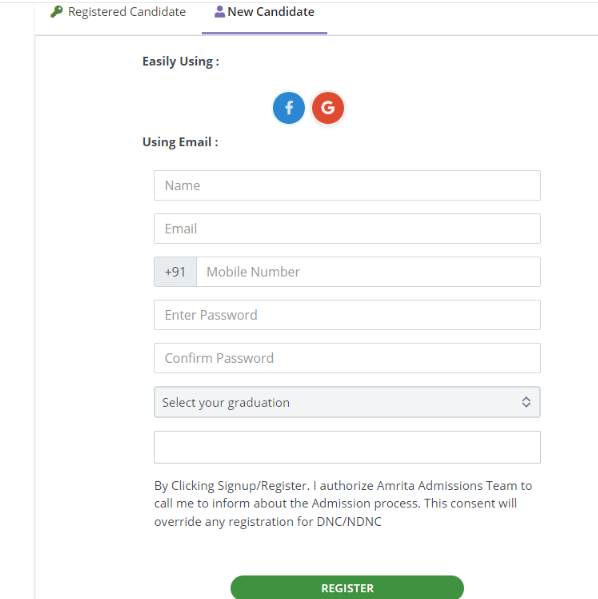
Go to New Candidate tab.
Candidate can do the sign-up to AOAP portal through either of the two options
Register Easily with their already existing Google or Facebook accounts
Register manually by providing Email and phone number details
Register with Google Account
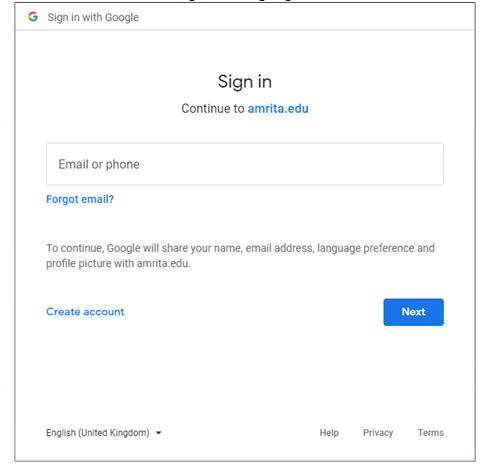
To Register with Google account, Click on the Google icon
You will be redirected to sign in with google credentials
Register with Facebook account
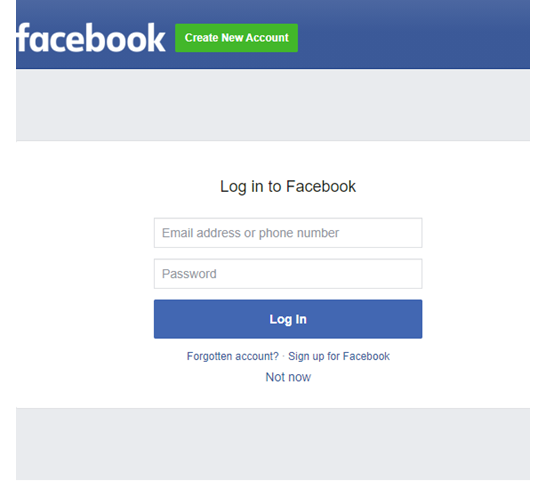
To Register with Facebook account, Click on the Facebook icon.
You will be redirected to sign in with Facebook credentials.
Register Manually using Email and Phone number details
Enter your Name, Email, Phone number and Password details.
Select you Graduation
Select your choice
Click Register
Personal Information
The Personal Information Page consists of three sub portions to complete
Personal Information
Address for correspondence
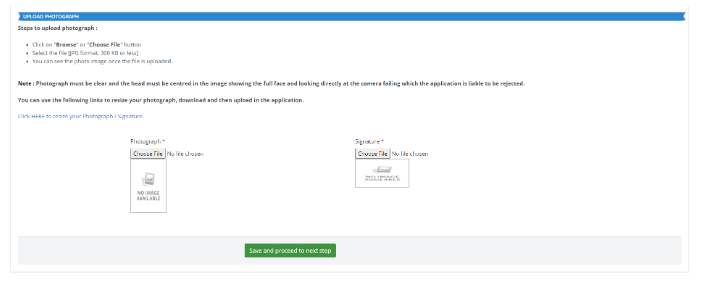
Upload Photograph
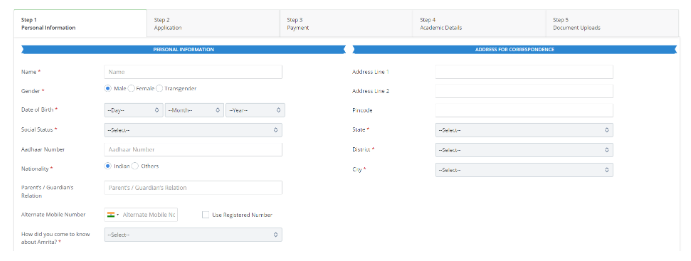
Candidate need to fill up the complete information and save the page to go to next step.
Perhaps candidate can save the page and proceed without uploading the photograph for time being.
Remember without completing the “Upload Photograph” portion your application remains incomplete or stands cancelled.
Application
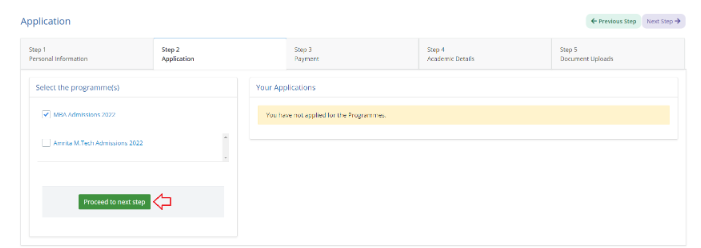
In the Application Page there are two boxes
Select the programme
Your Applications
By default, the program which the candidate selected while registering will be displayed as selected.
Candidate can choose any other program if required from the list of programme displayed.
Candidate needs to make sure that at least one of the programs is selected to apply.
Click on “Proceed to next step” at the bottom of the page to add the selected programs to the application.
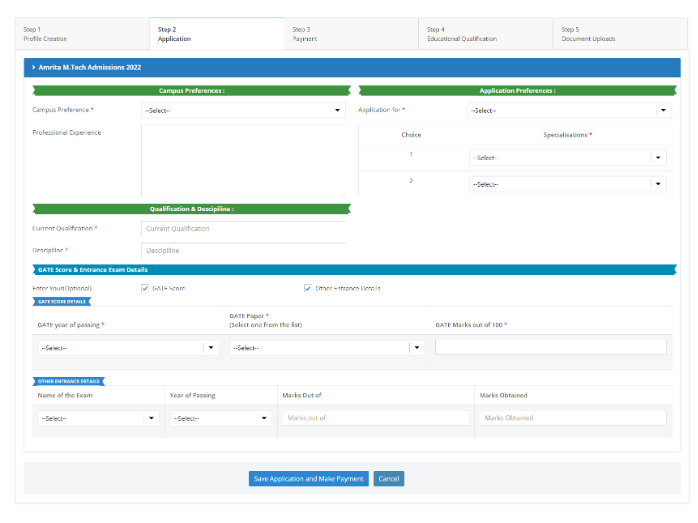
A new page will show the programmes you selected for applying.
Select the campus preferences and interview choice.
Fill the qualification test details and the date of appearing if any.
You will be asked to save the application and make payment.
Payment
Under Payment page, the selected programme name and the application cost details will be displayed.
Candidate needs to click on the “Click here to proceed with the payment” to proceed if all details displayed are confirmed.
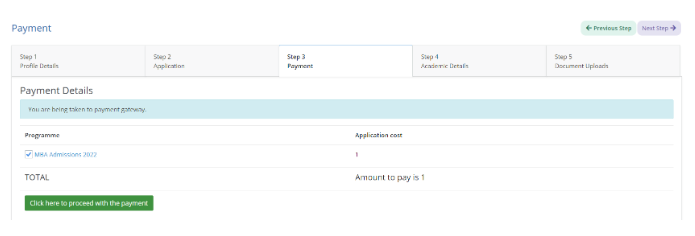
Once you complete the payment successfully, a confirmation will be displayed.
If the payment gets fail due to any circumstances, a Payment Failed page will be displayed. There is a “Back to application” to go back the application page and retry the payment again.
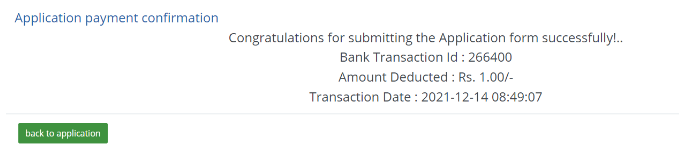
Academic Details
Depending on the graduation you choose, the education qualification details asked will vary.
For PG courses, UG level qualification details will be asked.
For UG courses, 12th class (HSC level) educational qualification details will be asked.
Academic Details for UG Programme
Candidate need to select the following from drop-down
Branch
Board
Year of passing
12th Standard State
School Studied
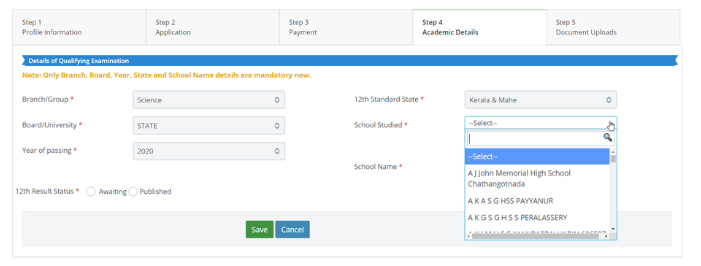
If the school name is missing in the drop-down, candidate can type the school name manually in the text box after selecting the check box near to “School not in above list”.
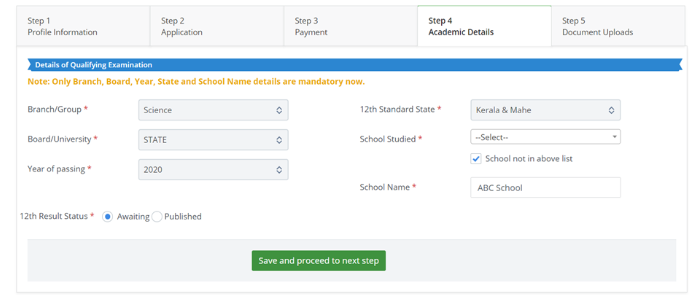
Candidate needs to specify the 12th Result Status as “Awaiting” or “Published”.
If the Candidate selects “Published” as 12th Result status, enter Individual marks scored for each subject against maximum marks for each subject.
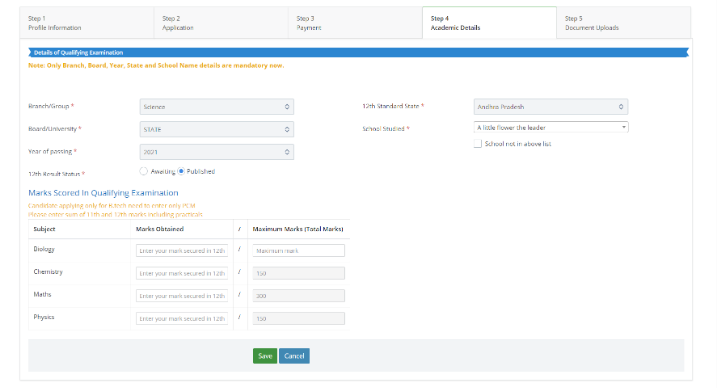
Click on “Save and proceed to next step” button to proceed
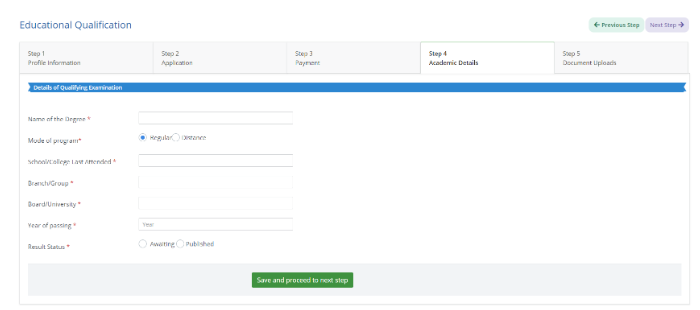
Academic details for PG Programme
For Post-Graduation Programme, the relevant details like
Name of the degree
Mode of program
School / College last attended
Branch / Group
Board / University
Year of passing
Candidate need to specify the Result status as either Awaiting or Published.
Save the filled data in the page and proceed to next step.
Document Uploads
This is the final Step where the candidate needs to upload the educational documents.
Depending on the graduation you choose, the documents to upload may vary.
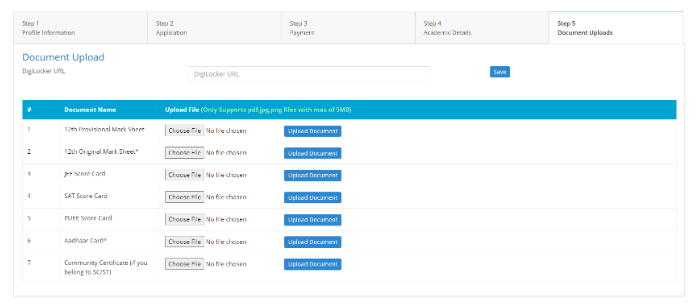
Document upload for UG
For UG courses, 12th class certificates will be asked.
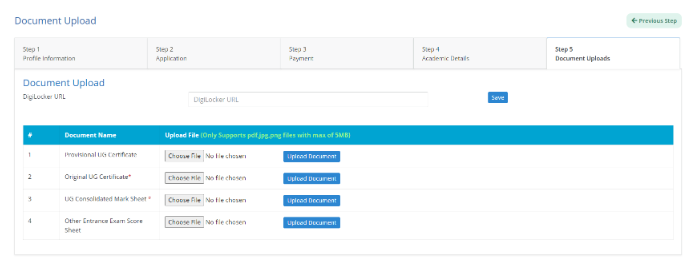
Document upload for PG
For PG courses, UG certificates will be asked.
You may login again any time and view the status or continue to complete the admission registration process.
Once you have completed the admission registration process you may receive email notifications or receive telephonic call from the admission team regarding the further procedures.
Login as an already Registered Candidate
A registered candidate can login with either of the two methods
Login using Facebook or Google account
Login with your previously registered AOAP credentials
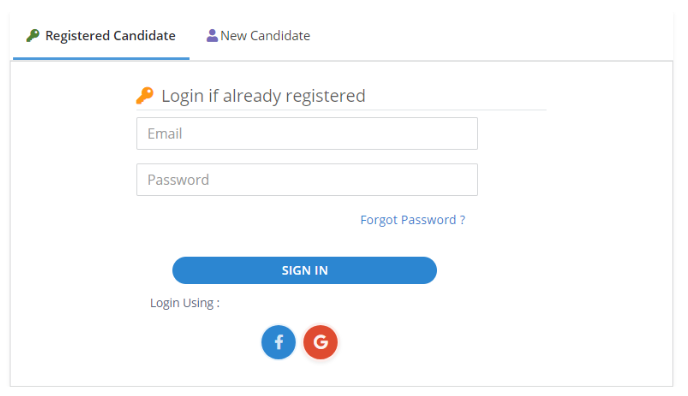
Forgot Password
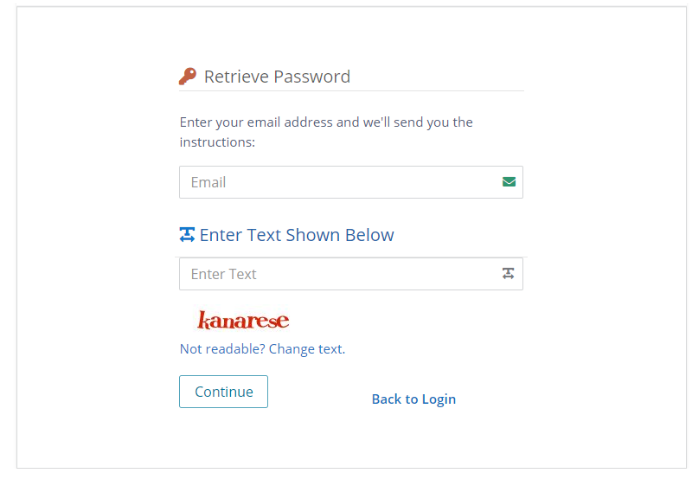
Click on Forgot Password in the login page.
Enter the email id.
Type the captcha text displayed.
Click Continue.
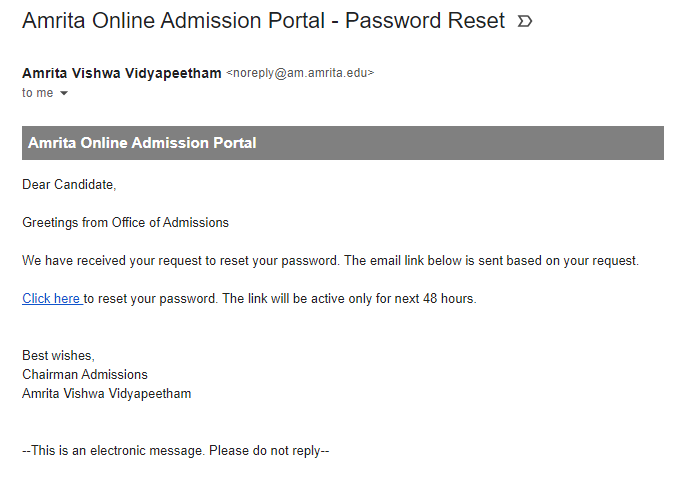
Candidate will receive an email to reset the password.
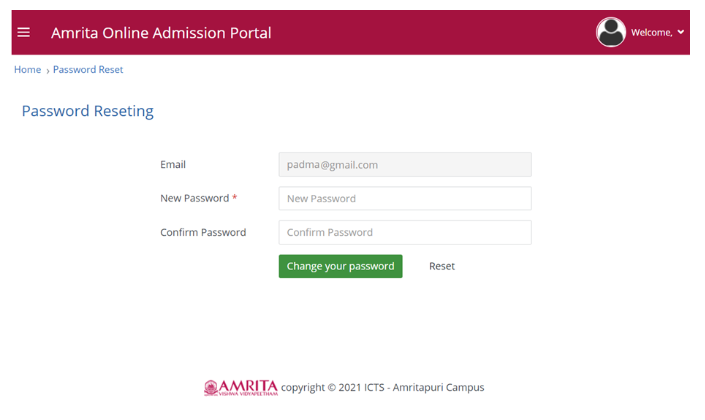
Enter the New password.
Type it again to confirm password.
Click Change your password button.
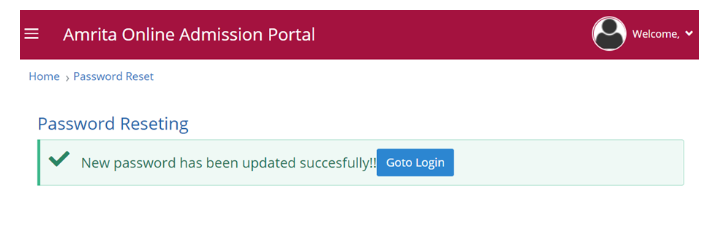
Confirmation message will be displayed.
Click Go to Login button.
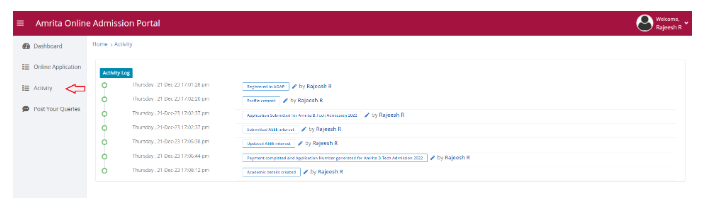
Activity
Activity page logs the activities done by the user in the Admission portal.
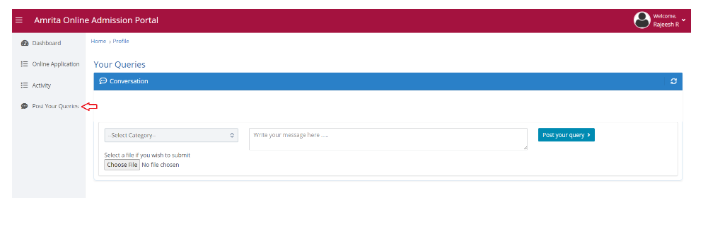
Post your queries
Candidate can post queries related to the admission.
Select a category which the query relates to from the drop-down
Type the query in the text box
Click “Post your query” button
Candidate’s query will be displayed under the conversation
Help-desk team will reply to the candidate’s query